Wednesday, January 14, 2026
About a year ago I had my home wired with Ethernet. The previous house I had lived was cabled, and I couldn’t live in the new house without wireless backhaul. Aint nobody got time for that.
The other day I noticed that my network transfer speeds seemed slow.
Running iperf3 between my mac mini server and my laptop, I identified the network was throttling at around 97 Mbps - far from the gigabit speeds I would expect. However, that 97 number was so perfectly close to 100 Mbps that it just had to be a failed cable or terminator. The problem was, which one?
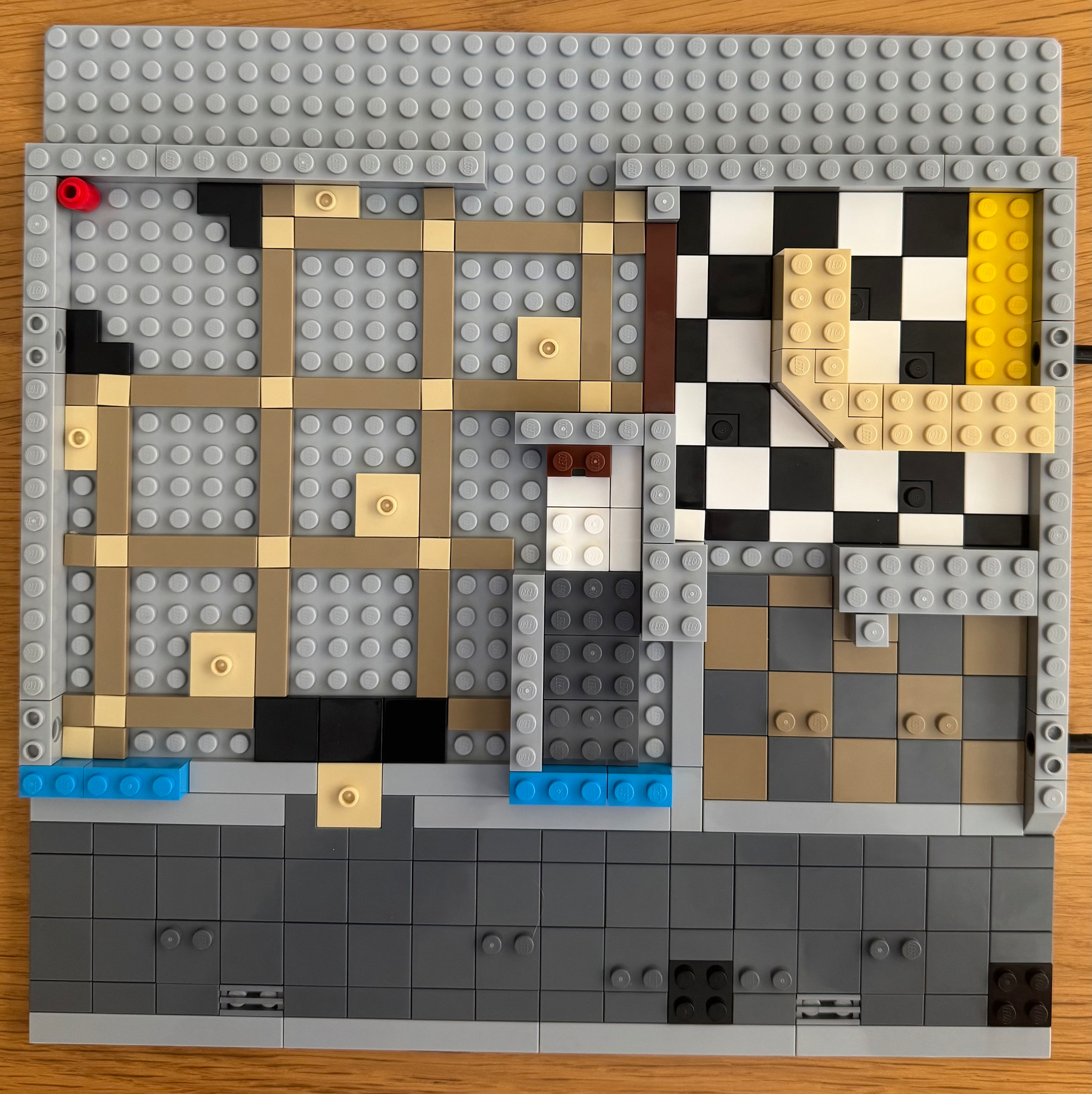
More problematic was that I couldn’t remember how the house hasd been wired. The contractors didn’t leave me with a diagram, so to diagnose the fault it was also helpful to build a map of the network.
To help my future self, here is one I created using the wonderful software Curio:
With my topology now clear I moved on to testing, slowing spanning outwards from the mac mini that was my listening end of iperf. Starting with a direct connection between it and my laptop, confirming gigabit speeds, then moving out from the server, a network layer at a time, to see where the speeds dropped.
I determined that it was a single Ethernet patch wire that was running from an Ethernet drop in my TV Room to the switch in that room that was damaged. I replaced it with a new cable, and continued to test other connections, and all were good.
My home network is performant once more, and I’m so pleased that it was a simple cable that was damaged, and not any of the infrastructure. That would have been annoying.
Tuesday, October 28, 2025
The following article is predominantly a record for my future self. The solution as described was imagined and thought through by me, but development was helped by ChatGPT because I don’t have the necessary coding skills. As it took a long time with multiple iterations, I asked ChatGPT to summarise and document the flow of my attempts.
As such, the majority of this article is AI-generated, but proofread and edited by me, a human.
For years, I’ve kept OmniFocus as my single source of truth for tasks. Every commitment lives there — work projects, household jobs, even odd ideas that might grow into something.
But my work notes live in Obsidian. That’s where meeting records, brainstorms, and running logs of ideas go. The two systems complement each other perfectly — except when they don’t talk.
I wanted a way to extract the tasks I jot into Obsidian (- [ ] Do the thing) and have them appear automatically in my OmniFocus inbox. No manual copy-and-paste. No Quick Entry window. No duplicative reliance on the Tasks plugin for Obsidian. Just seamless capture.
The goal
- Identify unchecked tasks in a note.
- Send each one to OmniFocus Inbox.
- Include a backlink to the originating Obsidian note.
In short, bridge the gap between where ideas start (Obsidian) and where they’re managed (OmniFocus).
I thought this would be quick and easy. It definitely wasn’t quick.
The first ideas: AppleScript
OmniFocus supports AppleScript. The theory was to have a script read tasks from the note, feed them to OmniFocus, and be done.
It didn’t go well.
AppleScript threw up errors like:
“Expected end of line but found plural class name.”
Keyboard Maestro tried to help, but AppleScript didn’t behave the same when triggered from automation tools. Even when it ran, nothing actually appeared in the Inbox. After several dead ends, I concluded AppleScript might be powerful — but it’s also brittle, opaque, and slow to debug.
The URL scheme breakthrough
That led me to OmniFocus’s x-callback-url API. This allows new tasks to be created via a simple URL such as:
omnifocus://x-callback-url/add?name=Test¬e=Hello&autosave=true
The autosave=true parameter was the key. It bypasses Quick Entry completely and saves the task directly into the Inbox.
That was exactly what I wanted: a silent, background handoff.
Enter LaunchBar… and exit again
My first working prototype ran from LaunchBar.
I created an action that triggered a shell script, which in turn parsed the current Obsidian file and sent the tasks via the OmniFocus URL scheme.
At first, it looked promising. LaunchBar picked up the script, presented it as an action, and I could trigger it with a simple keyword. But then the gremlins arrived:
- LaunchBar kept throwing
“The script does not implement a handler named 'run'”.
- Some actions failed silently — no errors, but no results.
- It appeared LaunchBar was spawning subshells that didn’t execute AppleScript context properly, so the automation chain would just vanish.
After hours of troubleshooting, I realised the reliability wasn’t there. The script itself worked — but LaunchBar wasn’t the right launcher.
Keyboard Maestro saves the day
I rebuilt the automation inside Keyboard Maestro, which handles timing, focus changes, and system permissions much more predictably.
The macro:
- Copies the current Obsidian note URI.
- Runs a Bash script that parses the note.
- Sends tasks straight to OmniFocus using the URL scheme.
Everything was almost perfect — except nothing happened. The logs said “No open tasks found.”
After several tests, I discovered the real culprit: macOS’s ancient Bash 3.2, which lacks mapfile. My whole parser depended on that command, so the script never captured anything.
The Bash 3.2 workaround
The fix was to make it Bash-3.2-safe. The parsing logic was recreated in Perl, which handles UTF-8 and regex. Instead of mapfile, it outputs each task line to a temporary file and loops through them safely.
/usr/bin/perl -ne 'if (/^\s*[-*]\s*\[\s\]\s+(.+?)\s*$/){print "$1\n"}' "$FOUND" > "$TITLES_FILE"
Each task line is then URL-encoded and sent directly to OmniFocus:
open "omnifocus://x-callback-url/add?name=${NAME}¬e=${NOTE}&tags=Obsidian&autosave=true"
No Quick Entry panel, no intermediate prompts — direct to the Inbox.
The Alfred solution
The final piece was Alfred. After LaunchBar’s unreliability, I moved the trigger there. Alfred handled it flawlessly.
Now I just type cap in Alfred (for , and it fires the Keyboard Maestro macro that runs the script. Within a second, all unchecked tasks from my current Obsidian note appear in OmniFocus, tagged “Obsidian” with a backlink to the note.
No friction, no crashes, and no mysterious “handler” errors.
The feeling of done
When the first test task appeared silently in my OmniFocus Inbox, I felt great satisfaction and relief. After all the false starts — AppleScript’s syntax chaos, Bash’s 2007 limitations, and LaunchBar’s quiet failures — it finally worked.
That single, silent task represented a perfect workflow: low friction, invisible automation, total reliability.
Lessons learned
- AppleScript is fragile. It works great until it doesn’t — and then it really doesn’t.
- macOS Bash is ancient. Write scripts that avoid
mapfile or other modern features.
- LaunchBar isn’t built for complex handoffs. Great launcher, but not for multi-step automations.
- Keyboard Maestro is the control centre. It bridges everything cleanly.
- Alfred is the perfect trigger. Fast, predictable, and rock-solid.
The final system
- Alfred keyword:
cap
- Keyboard Maestro macro: orchestrates the automation
- Bash 3.2-safe script: parses unchecked Markdown tasks
- Perl for encoding: ensures UTF-8 and emoji safety
- OmniFocus URL scheme: sends tasks straight to the Inbox (tagged “Obsidian”)
It’s simple, fast, and utterly reliable — everything good automation should be.
When people talk about “seamless capture” in GTD, this is what they mean. The tools fade away, leaving nothing but flow. Now, if only I could have this work on Windows…